Advertise on TechCreak.com

How to Add Customized Fevicon To Blogspot.

blogspot feviconFevicon is a icon just before URL of any blog or website in address bar. In blogspot blogs the blogger fevicon is displayed by default. You can change this blogger fevicon with any image or icon of your choice having animation or without any animation. By using the below steps, You can replace the default Blogger fevicon with customized fevicon.

Design your Fevicon with online free services available. You can search on Google about these free fevicon generator services. Besides this, You can use free ready made fevicons. An animated Fevicon can also be created with the help of these services.

After your fevicon is ready, Host it on some online services available like Photobucket, Imageshack, Flicker etc.

After the uploading or hosting your fevicon, Take URL of fevicon provided by host service used.

Go to Blogger Dashboard > Design > Edit HTML

Now find this piece of code <b:skin><![CDATA[  in the template.

Paste the code given below just above <b:skin><![CDATA[

<link href='PUT YOUR FAVICON URL HERE' rel='shortcut icon'type='image/x-icon'/>


Replace the Text given in red with URL of the fevicon hosted by you in earlier step.


Click on Save template. You will see customized fevicon added just before your blog address in address bar.


Disable registry editing in Windows 7, Windows XP or Windows Vista.

You can disable registry editing in all versions of Windows viz. Windows 7, Windows XP, or Windows Vista. In this way, you can protect your system against any change in your Windows with the help of simple tutorial given below:-

Click Start > Run and Type regedit in Windows XP.

Click Start > and type regedit in Search for Programmes and files box in Windows 7 and Windows Vista.

Now follow the instructions as HKEY_CURRENT_USER > Software > Microsoft > Windows > CurrentVersion > Policies

If there is no Key named as System under the Policies. Then right click on Policies > New > Key. Name this Key as System. Otherwise go to the next step.

Now right click on this System key > New > DWORD (32-bit) Value (REG_DWORD) as name this as DisableRegistryTools.

Double click on this DisableRegistryTools created. Put value data 1 and base Hexadecimal in DisableRegistryTools.

In this way you can disable Registry editing in Windows7, Windows XP or Windows Vista.


How To Restore Deleted Blogspot Blog.

blogger-iconYou will be very frustrated, if You have done much hard work to make a blogger blog and this blog has been accidently deleted by you. Don’t worry, you can restore or recover accidently deleted blogger blog by the simple steps given below.


Go to Blogger Dashboard after sign-in into your Blogger Account.

Now you will see Displaying 4 of 5 blogs – Show all at the end of blog list.


blogger-dashboard


Click on Show all.


Your will see as given in below image when you hit on Show all.


Undelete-blog


Click on Undelete this blog.


Your blog will be restored and you will see the message like this.


             Your blog was successfully restored.


Get 600+ Free High Pagerank Backlinks Instantly.

google-pagerankPagerank plays very important roll in Search Engine Optimization for any blog or website. If You have a blog or website having high Pagerank, Search Engines will give more priority to your blog or website over the others. The Pagerank depends upon the Do-Follow backlinks pointing towards your website or blog. More the Do-Follow Backlinks are pointing, higher will be the Page rank. And your blog or website will get more free traffic.


Generally, The manual URL submission to the High pagerank blog directories or websites to get free backlinks is very time consuming.


To overcome this difficulty you can try Instant Free Backlink Generator.


Steps:-


1. Firstly Turn off Popup Blocker of your browser.


2. Enter your website or blog URL in the box without http:// or www.

3. A list of website will be displayed each opening in new window.


4. Now Just go to Instant Free Backlink Generator.


It you enjoyed this tool, Please share it with your friends.


Google Tips, 10 ultimate Hints & Tricks.

google secretsIt is well known that Google is the major search engine on the internet. You may be searching on Google daily regarding your queries.There are many Google Search tips and Secrets. If you are well known about these Google tips, hints and tricks, you can search much effectively and can boost your productivity.
In the following tutorials, we will discuss some interesting Google tips, hints and tricks.

1. View all Kinds of Files online.

You can open all kinds of files online without downloading them.

Just Go to Google Docs viewer and put the URL of the file you want to open.

Almost all types of files can be opened here.

2. Send URL of any file to somebody online.

Also you can send URL of any file online to somebody. Just You have to enter the URL of that file in place of the red text given in the following text. URL should be entered including the http://

http://docs.google.com/viewer?url=http://brthomas.com/testing.docx

3. Enable High security in Your Google Account.

You can enable two-stage verification method the protect your Google Account. With this method, Every time you want to login to your Google account, you will receive a SMS on the mobile Number provided by you during the registration containing a confirmation code. Only after entering this confirmation code online, you will be able to login to your Google account. You can enable this method right Here.

4. Use Gmail Address like Two E-mail Addresses.

It is true that you can use your standard Gmail Address as two different multiple Gmail Addresses like example.address@gmail.com and example.address@google-mail.com , Every time messages will still reach you whether you are using any one of E-mail addresses. You can use this opportunity to create a filter within the Gmail account. For example you can use @google-mail.com to sign up newsletters or subscriptions.

5. Search the Local time of any city in the whole World.

To know the current time in any particular city, Use the following text in Google search box.
   
 Time City Name

Just enter the name of particular city in place of red text. You will see time as given below.
google-time
6. Find definition of a Word.

To know the exact definition of any word use following text in Google search box.

define: tricks
Replace the red text with your query.
define-google

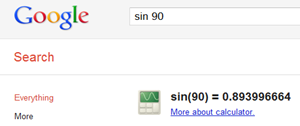
7. Use Google as a calculator.

You can use Google search as a simple as well scientific calculator.
Just type the expression as given below in the Google search box.

google-sum

Multiplication:-

google-multipecation

Other Functions:-

google-calculator


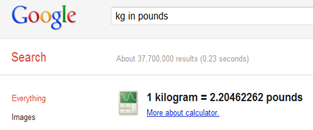
8. Convert Units in Google.

Just write text as given in below screenshot.

Kg in pounds.
google-unit-convertion

9. How to see the Map of any city or country with Google.

Just type Name of city map command in the Google search box. Google will show you map of that particular city.

10. Do a barrel roll Search Tricks.

It is another interesting fun with Google search engine. Go to Google and type Do a barrel roll in the search box. You will see the spinning search results.

I hope you will enjoy these unique Google search tips, hints and tricks.


Windows XP | Hide Files and Folders without any software.

lockYou can hide files and folders without any software in Windows XP. But for hiding files and folders in windows 7 you can check Another Tutorial. If you can hide files or folders without any software, then there is not any need to buy costly software.


For hiding files or folders in Windows XP the following simple steps are given:-


Firstly create a folder in which can hide files or folders. This folder should be placed at a location where it is not easily accessible by anybody else. For example, it may be created in C:\Program Files because C:\Program Files location generally contains system files and folders and generally people do not browse this derive. Give a name to this folder like Secret.


Now go to My computer >>Tools  >> Folder Options…

my1

Click on View Tab and Select option Do not show hidden files and folders given under Hidden files and folders in Advanced settings.

my2

Click Apply >> OK

Now go to the folder which you want to hide. Right click on this folder >> Properties.

my3


Click on General Tab. check the Hidden option given under Attributes.


my4


Click OK. The folder will become invisible till you disable Hidden in the similar procedure as given in below figure.


my5


Now to hide file or folder, You just have to assign a path to it as given in figure below.

Just enter the name of file or folder instead of the text given in red as given ahead  C:\Program Files\Secret\Name of file or Folder


my6


So enjoy this Tutorial an don’t forgot to share it with your friends.


Computer Tricks | Keep record of all USB activities - USB Log view

Almost everybody uses the USB devices to transfer data from one computer to another. USB means Universal Serial Bus. If the you store sensitive data on your computer and your system is used by more than one users. Then the security of stored data on your computer becomes very necessary. Besides this  USB devices can infect your computer with viruses.


To Tackle these problems, you can keep record of all the USB devices connected to your computer with small utility called USB LogView.


USB LogView is a small freeware utility which can serve your purpose.


usb logview


USB LogView is utility which runs in background and keeps record of all the USB devices connected to your computer. Once you installed this utility, It will create a log for each USB activity done on your system. Log means a event done previously. This utility will provide the information like Event type whether plug/unplug, Event time, Device name, Description and much more…


This utility can be used on all versions of windows from Windows older versions to Windows 7. Also on 64 bit as well as 32 bit.


You can download this utility free of cost by clicking Here.

4MRR6R442A2J


Home | About | Privacy | Proudly Powered By Blogger. | Blogger Template Design By Techcreak Go To Top